


Construct your top menubar
without any code 

A well-organized top menubar helps visitors navigate to important pages with a single click.
You can edit the top menubar at the link below  (Oopy console - Styles - Top menubar)
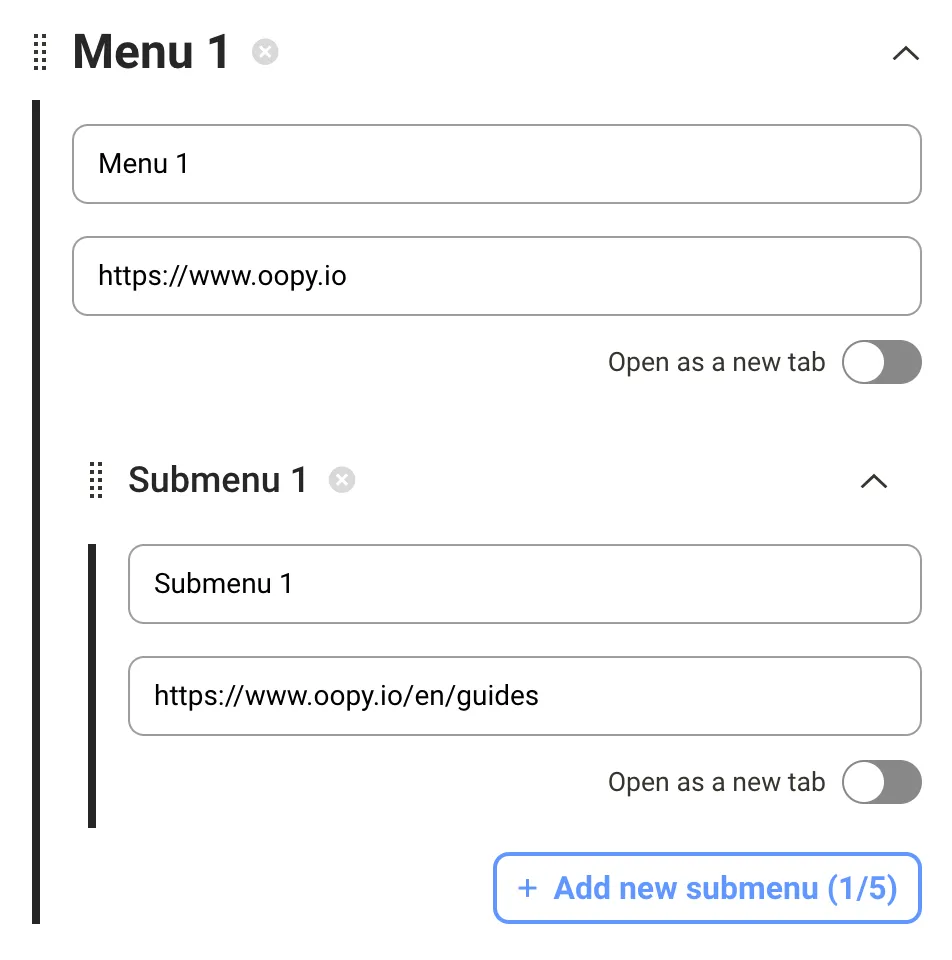
(Oopy console - Styles - Top menubar)+)  The submenu feature is supoprted!

While constructing the top menu bar, you'll want to add a two-tier menu below each menu.
Oopy prepares the submenu feature for you! 

The submenu feature is only for pro plan because it was released after 2022.02.01.
If you’re using legacy plan, please upgrade the plan to Pro!
 How to construct top menubar?
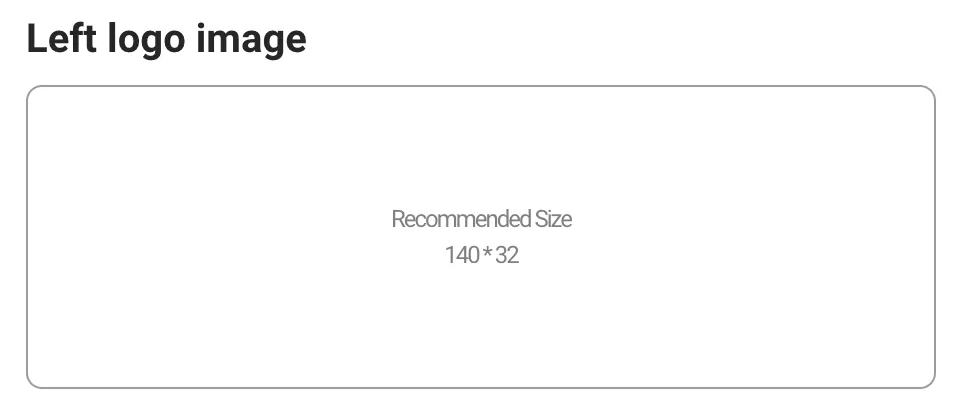
1. Left logo image
You can add special logo at the left side. The recommended size is 140 * 32.
(No image? Don’t worry. It is optional)
2. Menu color
The menu color is used to highlight each menu when hovered.
Check the example below.


3. Add new menu
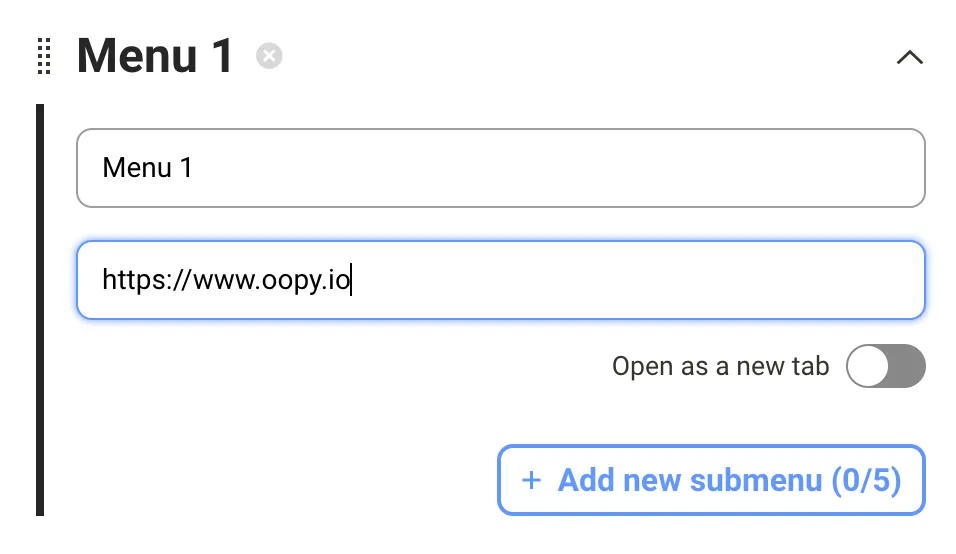
Please click the + Add new menu button! You can add up to 5 menus.
After click the button, you’ll find the menu card like right. You can edit the menu name, menu link and open as a new tab option.

4. Add new submenu
You can add up to 5 submenus under each menus. Click Add new submenu button and edit the content like a menu.
The submenu feature is only for pro plan because it was released after 2022.02.01.
If you’re using legacy plan, please upgrade the plan to Pro!